
The longer your computer stays infected, the greater the risk to your security and privacy. But how do you know when it’s infected so you can take action? If you pay close attention, your computer often shows early warning signs before the problem becomes more serious. Here are some subtle signs to watch for.
Your Antivirus Software Gets Turned Off
One of the first things many types of malware attempt to do is disable Windows Security or any third-party antivirus installed on your system. This allows the malware to operate quietly on your computer without detection or removal. When this happens, scheduled scans may stop running, and the malicious software can remain unnoticed for a long time.
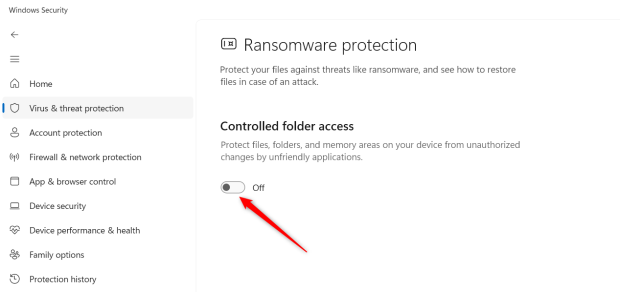
To check this, open the Settings app and go to Privacy & Security > Windows Security. If you notice that your antivirus appears disabled or has been replaced by a third-party antivirus you don’t remember installing, it could be a warning sign. Even if Windows Security is enabled, but features such as ransomware protection are turned off, that indicates an infection.
Additionally, if you try to re-enable the antivirus but the system prevents you from doing so, it’s a strong indication that your device may be infected.
6
VIEW GALLERY – 6 IMAGES
Unknown Programs Start Appearing on Your Computer
Some malware installs apps on your system and disguises itself as legitimate programs by using names that resemble trusted software. Because of this, even if you come across these apps, it can be difficult to recognize them as malicious. So they can continue to spy on you or carry out harmful activities on your device for a long time without being detected.
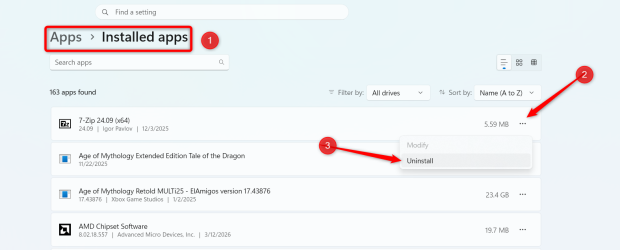
Since these programs often run in the background, they may also trigger frequent intrusive ads or pop-ups. To check for suspicious software, review the list of installed apps and see if you can spot anything you don’t remember installing. If you notice the same app listed multiple times, one of them may be malware; investigate and remove it if necessary.
Our Latest TweakTown Guides

Best Deals: Norton 360 Deluxe Antivirus Software
| Today | 7 days ago | 30 days ago | ||
|---|---|---|---|---|
 |
$24.99 USD | – | ||
|
|
$24.99 USD | – | ||
|
|
$24.99 USD | – | ||
|
|
$24.99 USD | – | ||
|
* Prices last scanned 3/26/2026 at 3:25 pm CDT – prices may be inaccurate. As an Amazon Associate, we earn from qualifying purchases. We earn affiliate commission from any Newegg or PCCG sales. |
||||
To view the list of installed apps, right-click on the Start button and open “Settings.” Then, navigate to Apps > Installed Apps.
6
Your Browser Homepage or Default Search Engine Changes
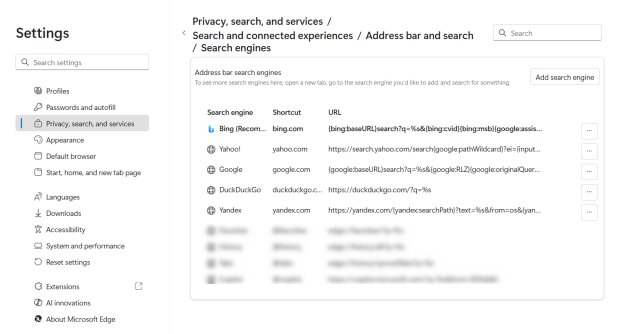
One of the most common ways malware enters a computer is through a browser hijacker. Once your browser is hijacked, the malware can modify its settings, changing the default search engine, redirecting your searches to specific websites, or sending your traffic to pages that generate ad revenue or collect user data.
To check for this, open your default browser and see if your homepage suddenly opens an unfamiliar website, if your searches are constantly being redirected, or if you notice other unusual behavior. If you observe any of these signs, review and remove any unknown browser extensions, reset your browser settings, or-just to be safe-reinstall the browser from scratch.
6
Your Computer Suddenly Starts Running Very Slow
Malware requires system resources to carry out its activities, so when your computer becomes infected, it often places a heavy load on the hardware, leaving fewer resources available for other tasks. It might be mining cryptocurrency, communicating with a remote server, sending spam, or performing other malicious actions.
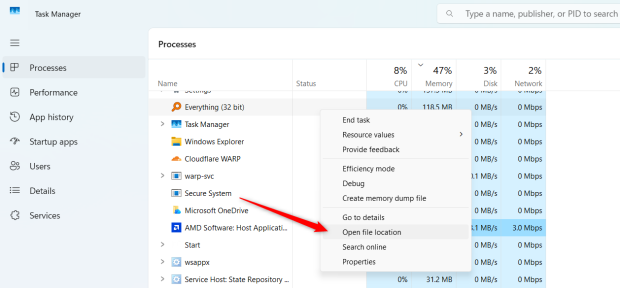
So, if your PC suddenly becomes slow during normal use or even when no demanding tasks are running, it could be a sign of an infection. If you notice fans running constantly or your computer overheating, open Task Manager and check which processes are consuming the most resources. Click on the header of the CPU, Memory, or Disk column to sort the processes.
Once you identify a process using an unusually high amount of resources, right-click it and select “Open File Location.” If the process belongs to an unfamiliar app, uninstall it.
6
Just like your hardware, malware can also use your internet to carry out its tasks. So, if you notice your internet slowing down without any clear reason, that could be a warning sign.
Your Camera Activates Randomly
If malware is designed to spy on you, it could remotely activate your device’s webcam without your consent, secretly capturing videos or images. When the camera is active, an indicator light will appear, and the taskbar may show which app is using it. Noticing these signs could be a warning of spyware on your system.
So, review your camera permissions and revoke access for any untrusted applications. To do this, right-click the Start button and open “Settings,” then navigate to Privacy & Security > Camera. Here, you can see which apps have permission to access your camera, and you can expand the menu to check which apps have used it recently.

6
Disable access for any apps you don’t trust. If the app seems suspicious, you should also completely uninstall it.
Malware can quietly infiltrate your computer, and the longer it goes undetected, the greater the risk to your system. By keeping an eye out for the warning signs mentioned above, you can detect infections early. Running malware scans and following the recommended steps will help you remediate the issue, protect your personal data, and prevent further damage.

