
Executive Summary
Multi-factor authentication (MFA) on Microsoft 365 accounts creates a false sense of security. Sophisticated adversary-in-the-middle (AiTM) attacks can completely bypass MFA by stealing authenticated session tokens after users successfully complete two-factor authentication. This post examines how these attacks work against Microsoft 365, demonstrates a real-world penetration test showing complete account takeover, and provides validated remediation strategies based on 2026 security research.
Key Takeaways:
- Traditional MFA (SMS, authenticator push, TOTP) does not prevent session hijacking on Microsoft 365
- AiTM frameworks can steal session tokens in real-time during legitimate authentication
- Default Microsoft Entra ID configurations provide zero detection for post-authentication attacks
- Effective protection requires phishing-resistant authentication (FIDO2, Windows Hello), token binding, and premium detection licenses
The Attack: How Session Token Theft Works Against Microsoft 365
Understanding the Kill Chain
Session token theft attacks exploit a fundamental truth about Microsoft 365 authentication: once a user successfully authenticates and receives a session token, that token becomes their identity. If an attacker can steal the token, they can impersonate the user without ever needing their password or MFA code.
The attack follows this sequence:
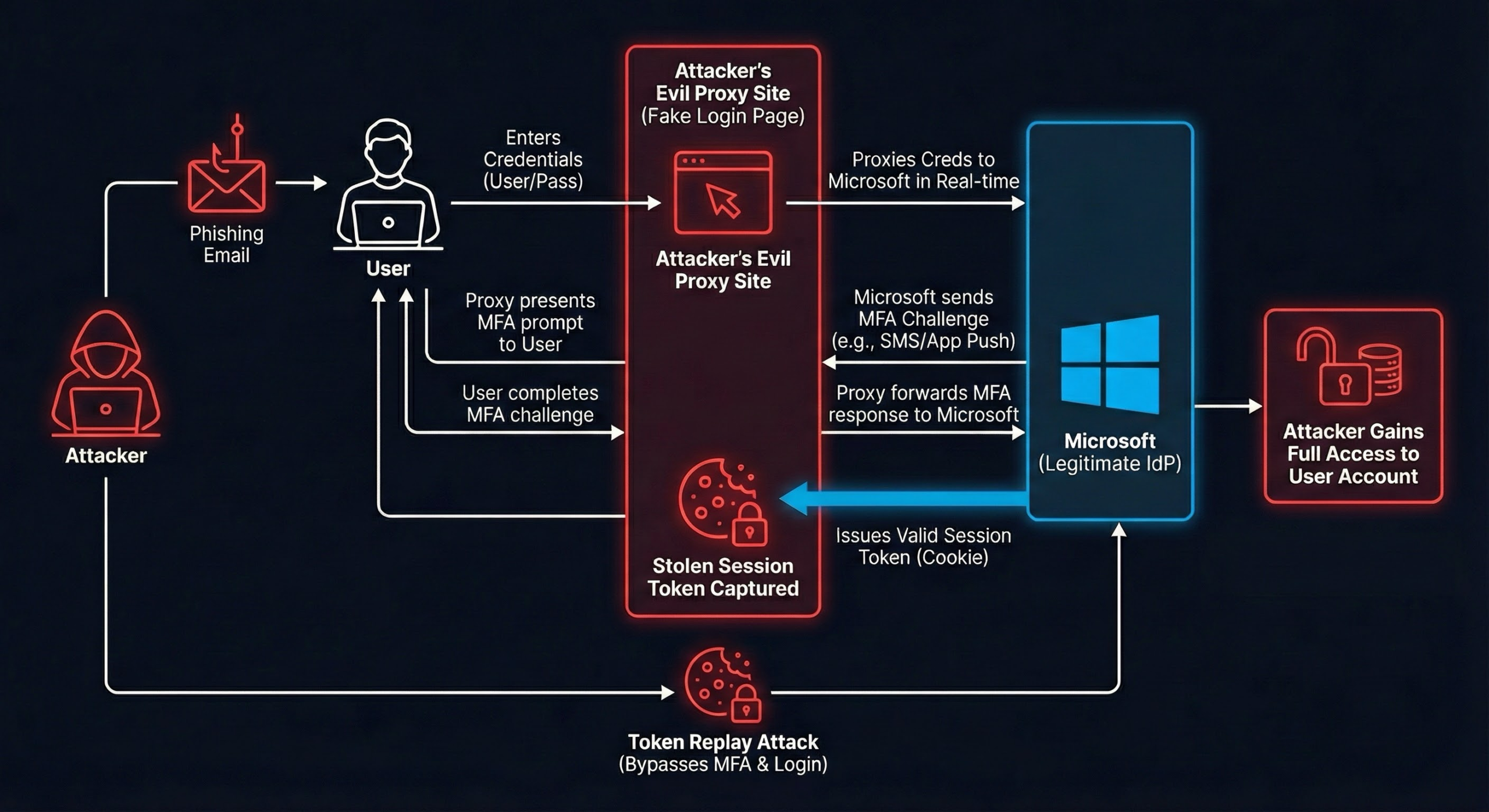
Figure 1: Complete attack flow showing how an AiTM framework acts as a transparent proxy between the victim and legitimate Microsoft authentication infrastructure
- Initial Access: Attacker sends phishing email with link to fake Microsoft 365 login page
- Proxy Interception: Fake site is actually a reverse proxy that forwards requests to real Microsoft login servers
- Real Authentication: User authenticates with real credentials and real MFA to real Microsoft servers
- Token Capture: AiTM framework intercepts the session token returned by Microsoft after successful authentication
- Session Hijacking: Attacker uses stolen token to access Microsoft 365 applications as the compromised user
- Persistence: Token remains valid until expiration or manual revocation (refresh tokens default to 90 days)
Critical Insight: The user is authenticating against the real Microsoft infrastructure. The MFA code they enter is valid. From Microsoft’s perspective, this looks like a legitimate login. The only difference is that an attacker silently copies the session token during the process.
Real-World Attack Walkthrough: Step-by-Step
The following demonstrates an actual session token theft attack conducted during a security assessment against a Microsoft 365 environment. This walkthrough shows exactly how the attack works in practice.
Step 1: Building Attack Infrastructure
We configured an AiTM framework with a custom phishlet for Microsoft 365:
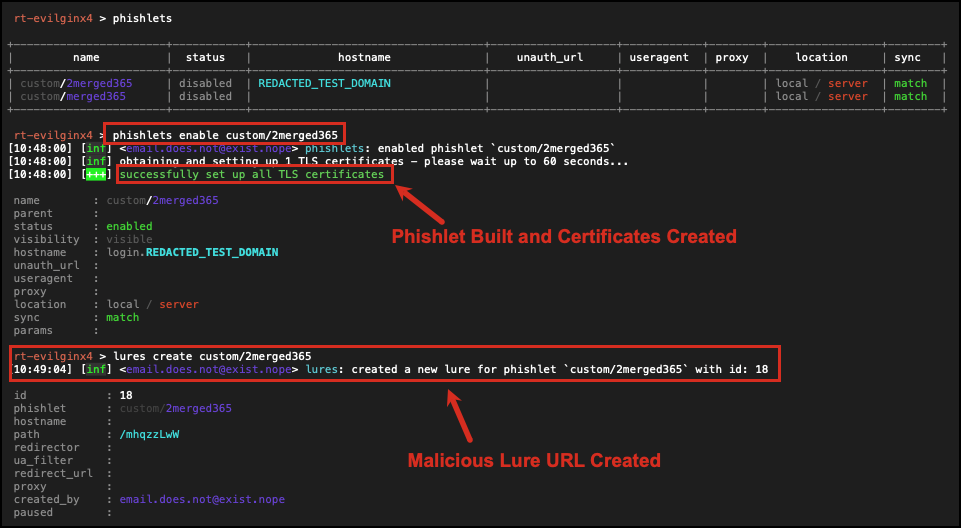
Figure 2a: AiTM phishlet enabled with TLS certificates and lure URL created
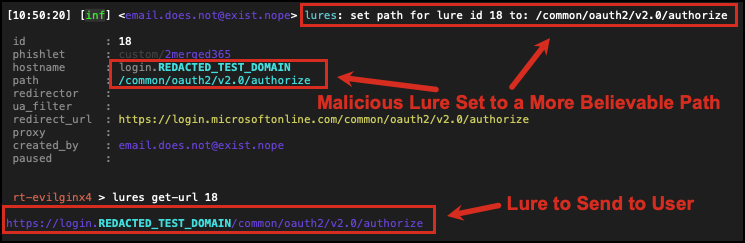
Figure 2b: Lure path customized to mimic legitimate Microsoft OAuth2 authorization endpoint
The phishlet defines how the framework should:
- Proxy traffic to the legitimate
login.microsoftonline.comdomain - Rewrite domains in HTML responses to the phishing domain
- Capture specific tokens during authentication (access tokens, refresh tokens, session cookies)
Step 2: Phishing Delivery
We sent a targeted phishing email containing a malicious link designed to appear as a legitimate Microsoft 365 notification:
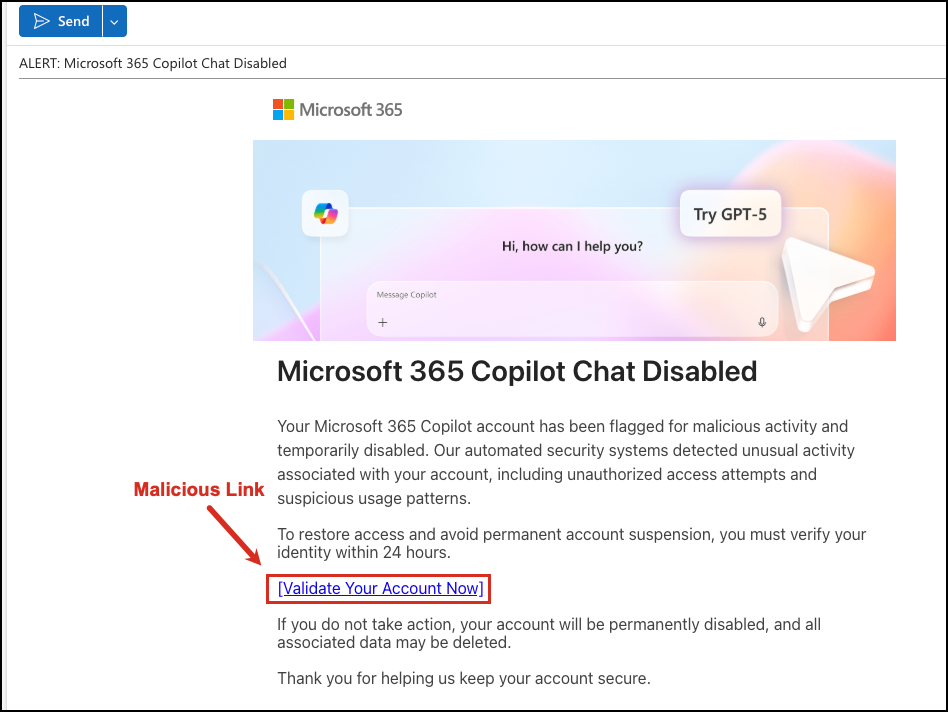
Figure 3a: Phishing email disguised as a Microsoft 365 Copilot Chat notification with urgent account action required
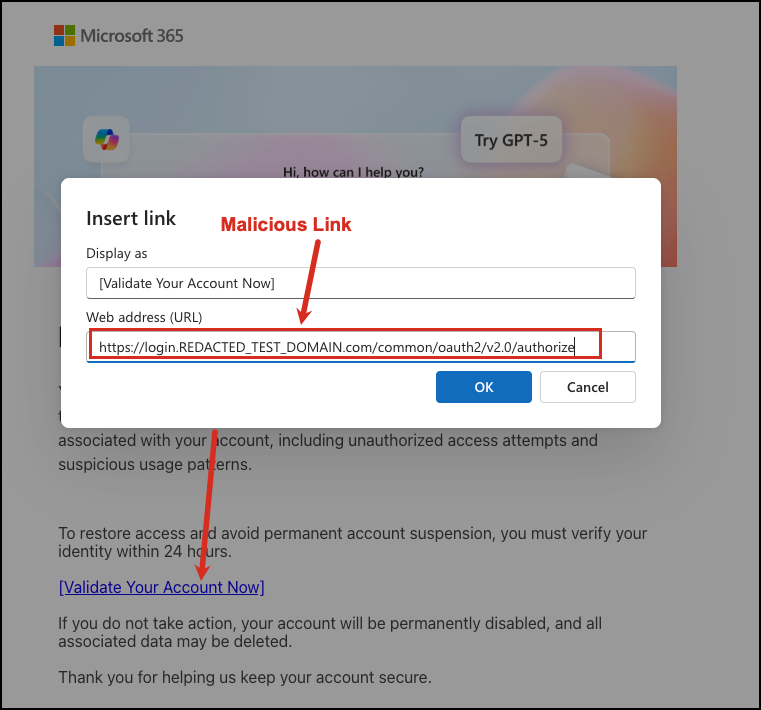
Figure 3b: Inspecting the link reveals the malicious domain pointing to the AiTM proxy infrastructure
When the user clicks the link, they are directed to our AiTM server, which acts as a reverse proxy to the legitimate Microsoft login page. The user sees the real Microsoft 365 interface (HTML served directly from Microsoft servers), but all traffic flows through our attack infrastructure.
Key Point: The user is not visiting a fake login page. They are interacting with the real Microsoft authentication system, proxied through the AiTM framework. This is why the attack bypasses MFA.
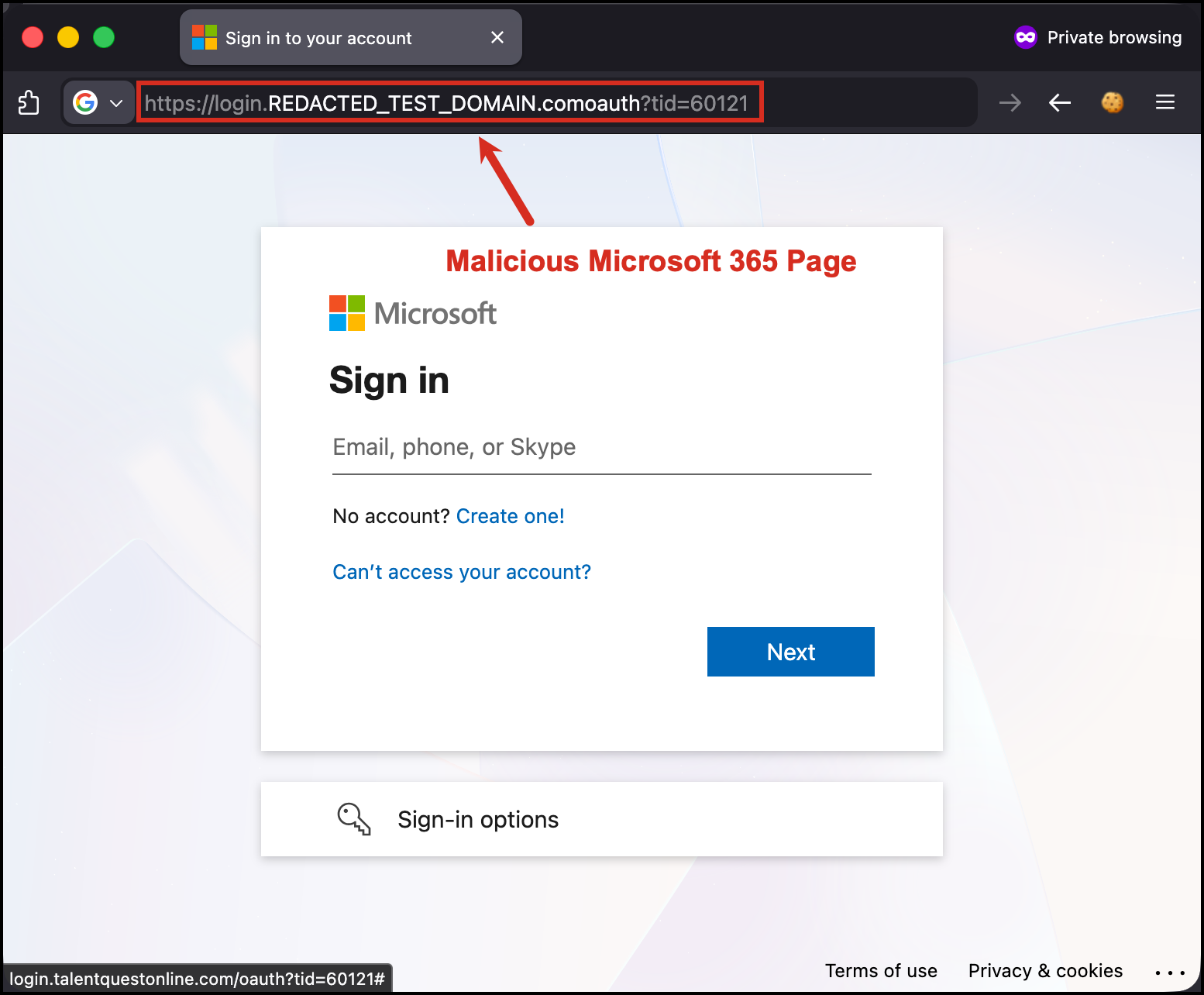
Figure 3c: The AiTM phishing page is visually identical to Microsoft’s real login – note the malicious domain in the URL bar
Step 3: User Authentication with MFA
The user enters their email address and password on what appears to be the legitimate Microsoft login page:
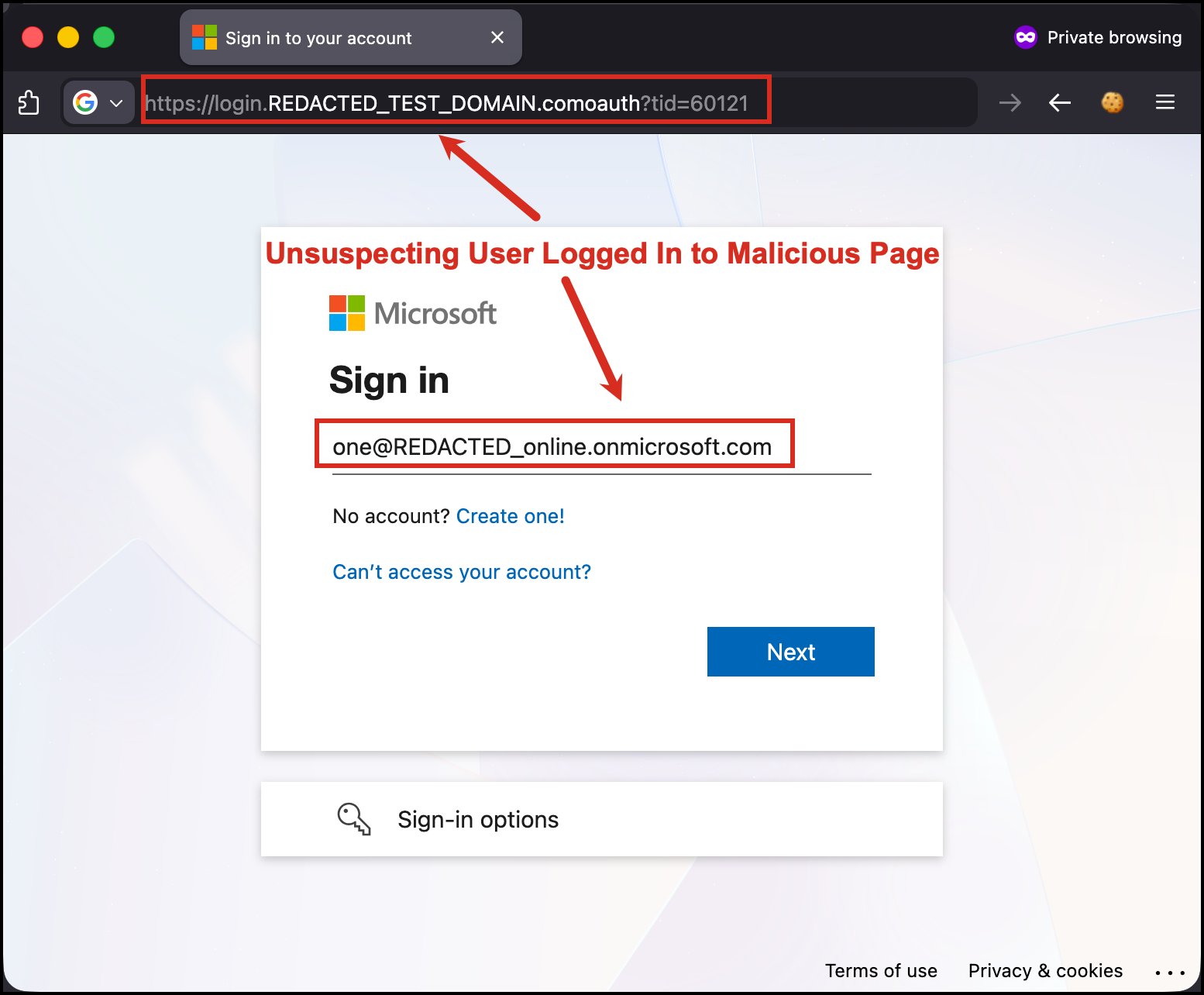
Figure 4: User enters credentials on the real Microsoft login page proxied through AiTM framework
Microsoft 365 prompts for multi-factor authentication. The user receives a number matching challenge – the login page displays a two-digit number that the user must enter into their Microsoft Authenticator app to confirm the sign-in:
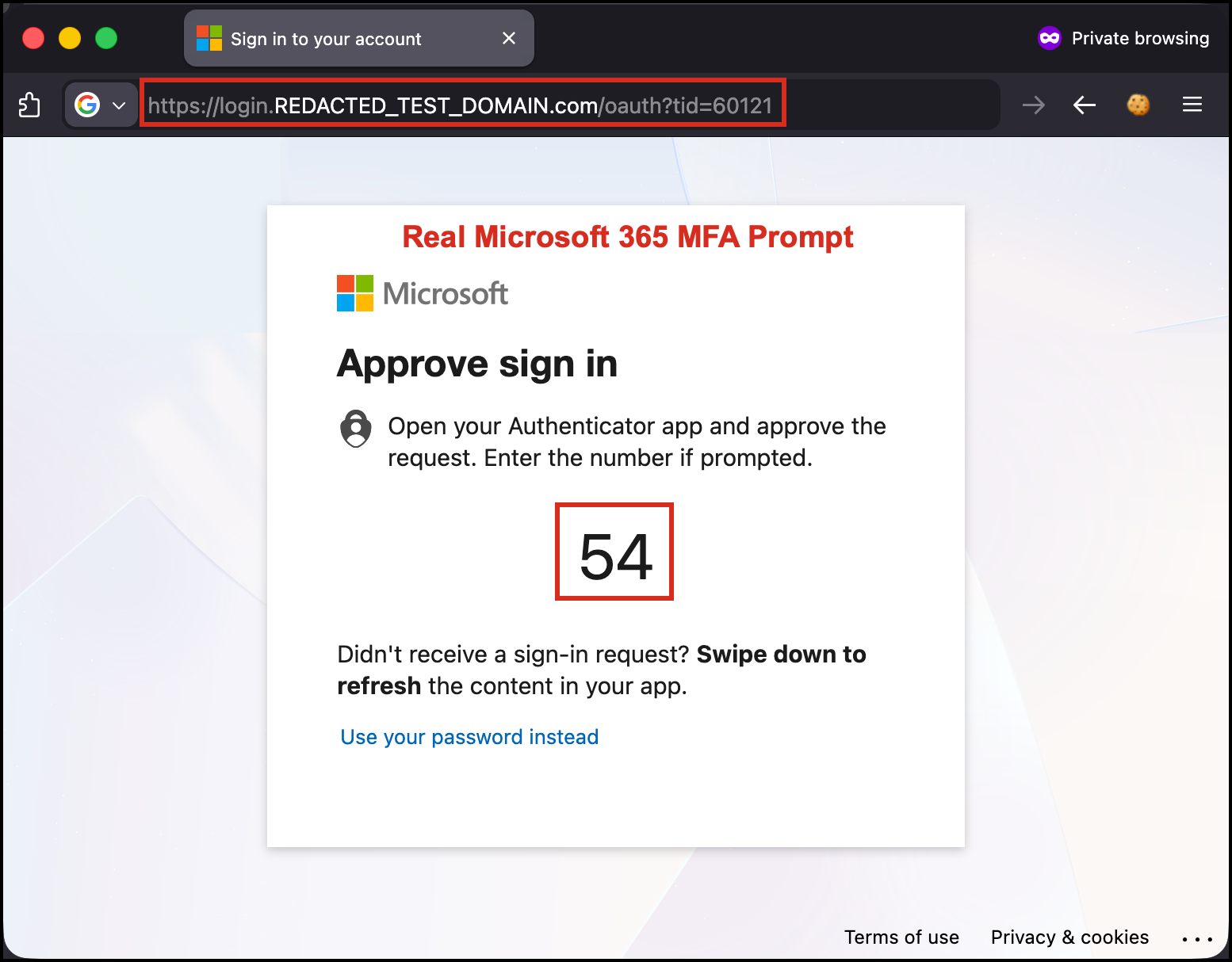
Figure 5a: Microsoft Authenticator number matching challenge displayed through the AiTM proxy – user must enter the displayed number
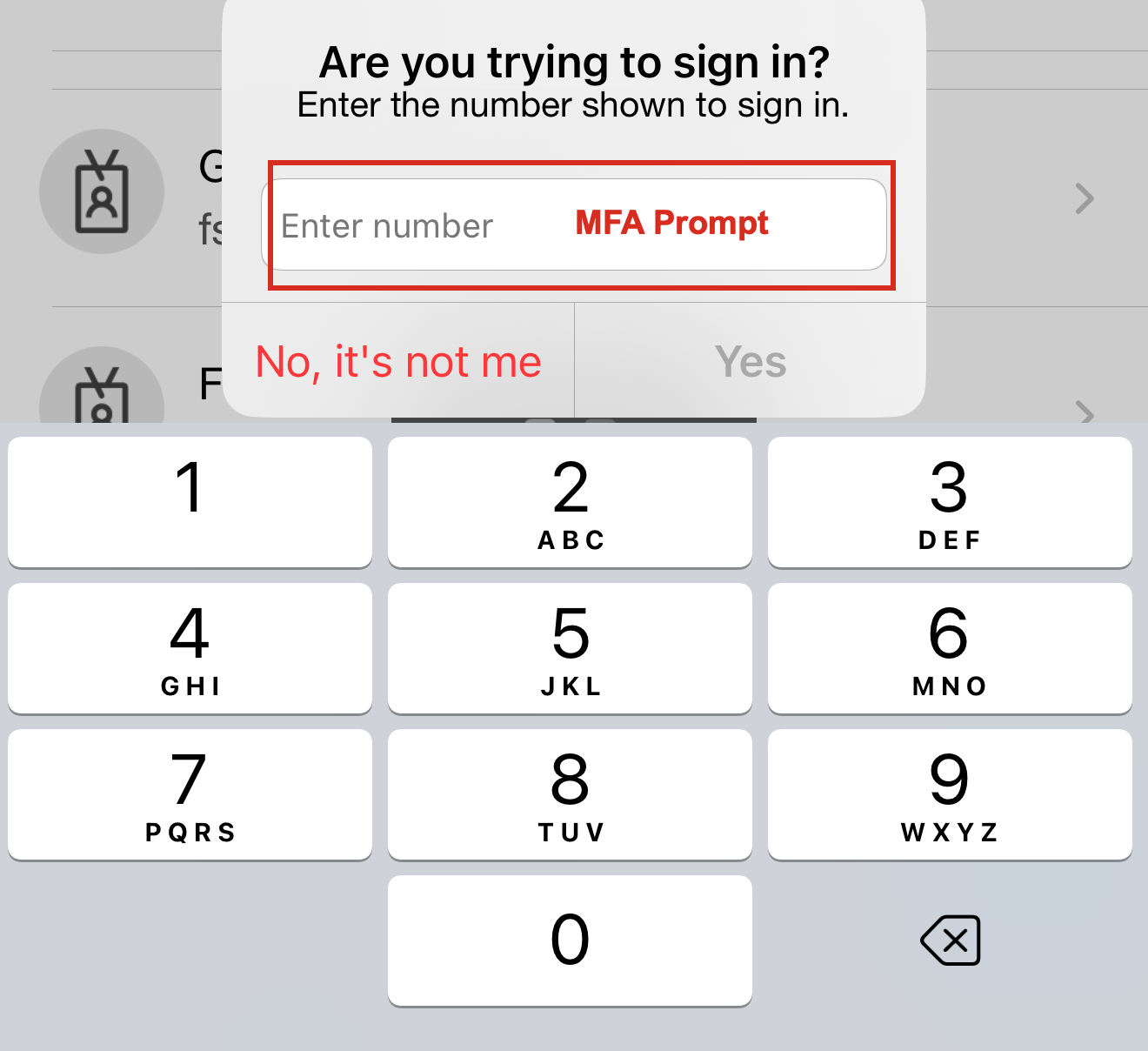
Figure 5b: User receives the legitimate MFA number matching prompt on their phone and enters the displayed number
From the user’s perspective, everything appears normal. The login page looks identical to Microsoft’s interface, the SSL certificate is valid (for the phishing domain), and the MFA prompt comes from their real Authenticator app.
Step 4: Real-Time Token Capture
As the user completes authentication (including MFA), the AiTM framework captures everything in transit:
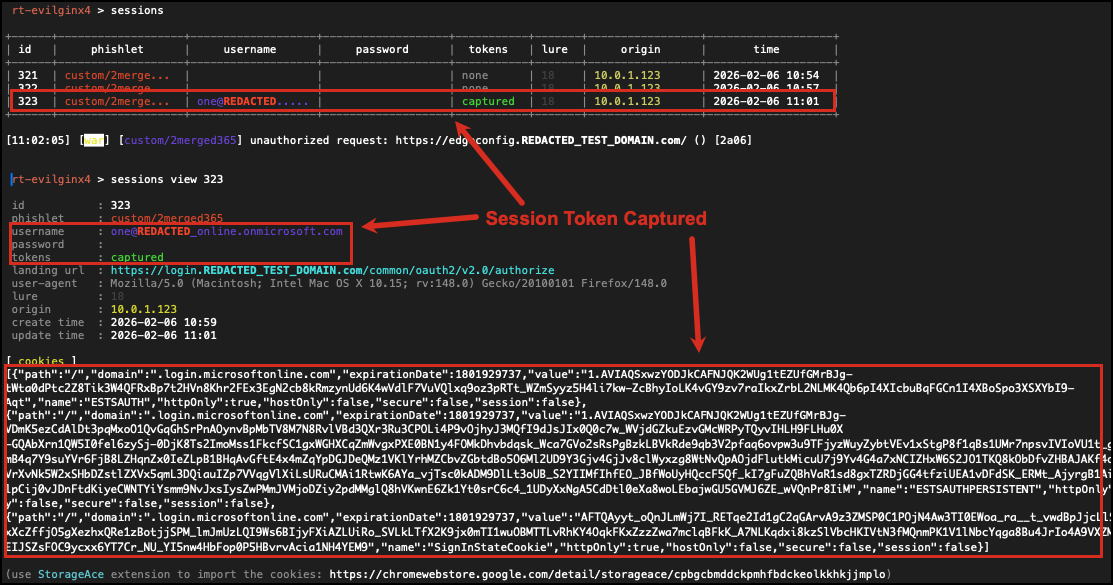
Figure 6: AiTM framework captures credentials, access tokens, refresh tokens, and session cookies after successful MFA completion
Captured artifacts:
- Email address: [REDACTED] (plaintext)
- Password: [REDACTED] (plaintext) – In this assessment, the target had passwordless authentication enabled, so no password was captured. However, the session tokens were sufficient for complete account takeover.
- Access Token: JWT token for Microsoft Graph API access
- Refresh Token: Long-lived token (90-day default) for obtaining new access tokens
- Session Cookies:
ESTSAUTH,ESTSAUTHPERSISTENT,SignInStateCookie
The critical moment is after MFA succeeds. Microsoft issues the session tokens to the user’s browser, and the AiTM framework intercepts the Set-Cookie headers in real-time.
Step 5: Session Cookie Injection
With the stolen session tokens, we performed session replay using the StorageAce browser extension in Chrome:
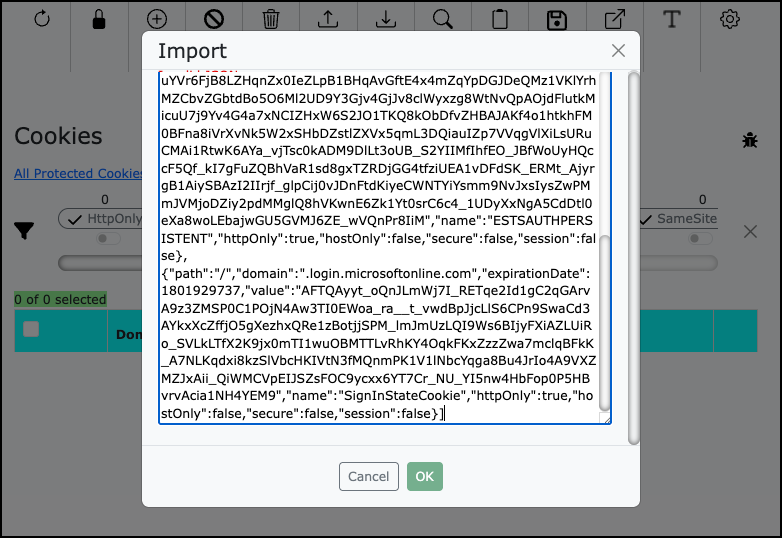
Figure 7: Opening Chrome browser and navigating to Microsoft 365 portal to prepare for cookie injection
Using StorageAce, we injected the captured session cookies:
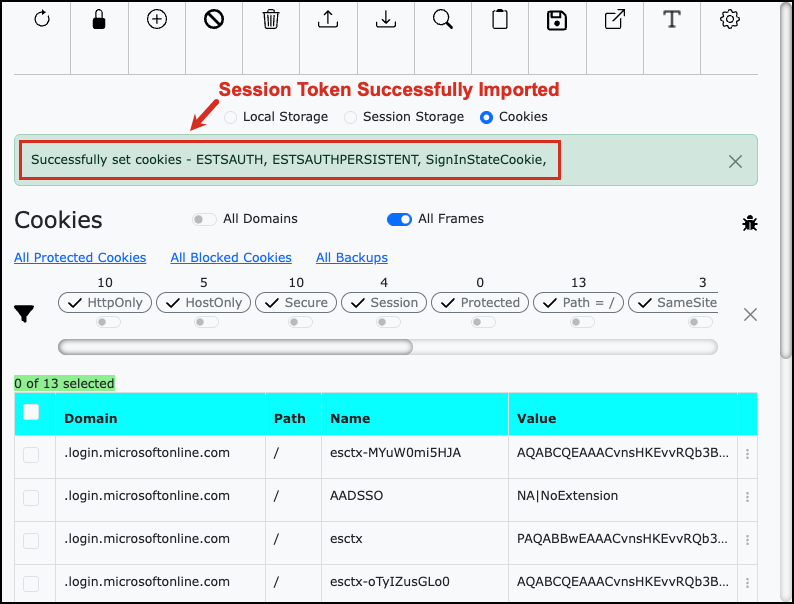
Figure 8: StorageAce extension used to inject the stolen session cookies into Chrome
Injection process:
- Navigate to
https://portal.office.com - Open StorageAce extension
- Import the captured session cookies (
ESTSAUTH,ESTSAUTHPERSISTENT,SignInStateCookie) - Import the access and refresh tokens if needed for API calls
- Close the cookie editor and refresh the page
Step 6: Total Account Takeover Achieved
After injecting the stolen session cookies, we refreshed the browser:
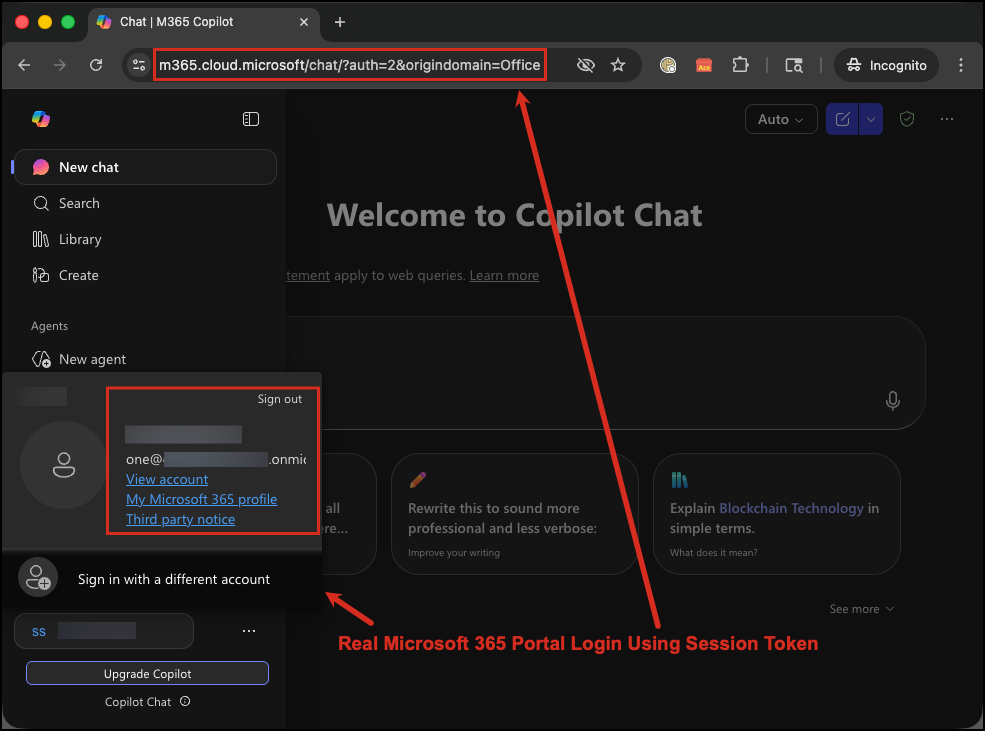
Figure 9a: Full access to Microsoft 365 Copilot portal – logged in as the victim without any authentication prompt
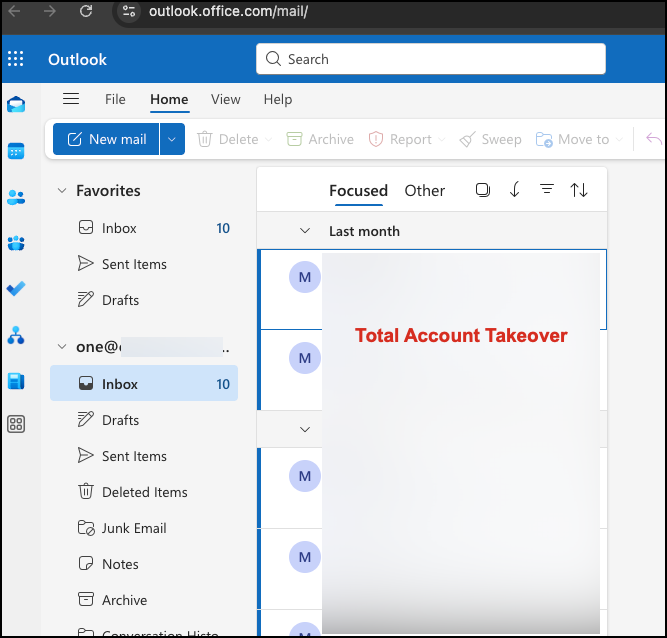
Figure 9b: Complete access to the victim’s Outlook mailbox demonstrating total account takeover
Result: Immediate access to the user’s Microsoft 365 portal and all connected applications. No password prompt. No MFA challenge. The stolen session cookies were sufficient to completely bypass all authentication controls.
What we could access:
- Outlook email (read, send, delete, create inbox rules)
- OneDrive files (download, upload, share, delete)
- SharePoint sites (access sensitive documents)
- Teams messages and files
- Azure portal (if user had permissions)
- Microsoft Graph API (programmatic access to all M365 data)
Attack Timeline:
- T+0 minutes: Phishing email sent
- T+8 minutes: User clicked link and authenticated
- T+8.5 minutes: Session tokens captured by AiTM framework
- T+12 minutes: Cookies injected and access achieved
- Total time to compromise: 12 minutes from initial email delivery
This demonstrates why session token theft is so dangerous: even with MFA enabled, an attacker can achieve full account compromise in minutes.
Why Traditional Defenses Fail
The MFA Paradox
Organizations implement MFA believing it provides comprehensive protection against credential theft. This is true for password-based attacks but false for session-based attacks.
| Attack Type | Traditional MFA Protection | Session Token Theft Protection |
|---|---|---|
| Password Guessing | Effective | Effective |
| Password Reuse | Effective | Effective |
| Credential Stuffing | Effective | Effective |
| Phishing (credentials) | Effective | Effective |
| Phishing (session tokens) | Ineffective | Ineffective |
| Session Hijacking | Ineffective | Ineffective |
| Cookie Theft (malware) | Ineffective | Ineffective |
Root Cause: MFA validates identity at authentication time. Session tokens represent post-authentication state. Stealing the token means bypassing the need to authenticate at all.
Detection Blind Spots
Standard Microsoft Entra ID (formerly Azure AD) security monitoring has significant limitations for detecting session token theft:
What Microsoft Entra ID Sees:
- Successful authentication from user’s IP address
- Valid MFA challenge and response
- Session created for legitimate user account
- Application access from expected geographic region (if attacker uses same region)
What Microsoft Entra ID DOESN’T See (Without Premium Licenses):
- Session token copied mid-authentication
- Second concurrent session from different device (unless Entra ID P2 for correlation)
- Token replay from attacker infrastructure
- Subtle behavioral differences (automated vs. human interaction)
Critical Finding from 2026 Validation: Base Microsoft Entra ID (Free tier) provides ZERO post-authentication attack detection. Organizations must upgrade to Entra ID P2 to enable Identity Protection features that detect anomalous tokens, token issuer anomalies, and session hijacking attempts.
This is identical to the Okta limitation where base licensing only monitors authentication events, not post-authentication session activity.
Anatomy of Microsoft 365 Session Tokens
What Gets Stolen
When you successfully authenticate to Microsoft 365, several authentication artifacts are created:
| Token Type | Purpose | Default Lifetime | Theft Impact |
|---|---|---|---|
| Access Token (JWT) | API authentication | 60-90 minutes | Microsoft Graph API access until expiration |
| Refresh Token | Renew access tokens | 90 days | Persistent access for weeks without re-authentication |
| Session Cookies | Browser session management | Until refresh expires | Full web portal access |
| Device Trust Token | Device binding | Persistent | Bypass device trust policies |
Critical Finding from 2026 Security Research:
Neither FIDO2 (phishing-resistant authentication) nor Certificate-Based Authentication (CBA) prevents session token replay by default. Organizations must separately enable Token Protection (Conditional Access feature) to cryptographically bind tokens to device keys. Without Token Protection, even organizations using FIDO2 remain vulnerable to session hijacking after authentication succeeds.
Token Lifecycle and Attack Windows
Understanding when stolen tokens are useful to attackers:
User Authenticates -> Microsoft Issues Token -> Token Valid Until:
                                              |-- Access Token Expires (60-90 min)
                                              |-- Refresh Token Expires (90 days)
                                              |-- Sign-in Frequency Policy Triggers (configurable)
                                              |-- Manual Revocation
                                              |-- Password Change
Attack Window: If an attacker steals a refresh token with a 90-day lifetime, they can obtain new access tokens for up to 90 days without re-authentication. This provides massive operational time for data exfiltration, lateral movement, or privilege escalation.
The Vendor Reality Check: What Microsoft Actually Provides
Marketing vs. Technical Reality (2026 Validation)
We validated Microsoft’s actual capabilities against session token theft. Here’s what we found:
Claim #1: “FIDO2 and Windows Hello Provide Phishing-Resistant Authentication”
Marketing Claim: Deploy FIDO2 security keys or Windows Hello to eliminate phishing attacks.
Technical Reality:
- FIDO2 and Windows Hello prevent credential phishing through cryptographic origin binding
- Attackers cannot relay FIDO2 challenges to fake domains (domain mismatch breaks crypto)
- FIDO2 and Windows Hello do NOT prevent session token theft after authentication
- Requires Token Protection (Conditional Access feature) to bind tokens to device keys
- Without Token Protection: Session cookies can still be stolen and replayed
Correct Implementation:
- Enable FIDO2 Security Keys (Entra Admin Center > Authentication Methods)
- Enable Windows Hello for Business (Intune policy with Cloud Kerberos Trust)
- CRITICAL: Enable Token Protection in Conditional Access Session Controls
- Only then are session tokens cryptographically bound to device keys
Gap Discovered: FIDO2 and Windows Hello protect the authentication step but not the session that follows. Token Protection is mandatory for complete AiTM defense.
Claim #2: “Microsoft Entra ID Detects Session Hijacking”
Marketing Claim: Entra ID provides comprehensive threat detection for Microsoft 365 environments.
Technical Reality:
- Entra ID Free detects pre-authentication attacks (brute force, password spray)
- Entra ID Free has ZERO visibility into post-authentication session activity
- Entra ID P1 provides Conditional Access but no risk detection
- Session hijacking detection requires Entra ID P2 (Identity Protection premium add-on)
Detection Capability Matrix:
| Attack Type | Entra ID Free | Entra ID P1 | Entra ID P2 |
|---|---|---|---|
| Credential Stuffing | Detects | Detects | Detects |
| Password Spraying | Detects | Detects | Detects |
| Brute Force | Detects | Detects | Detects |
| Session Hijacking | No Visibility | No Visibility | Detects |
| Anomalous Token | No Visibility | No Visibility | Detects |
| Token Issuer Anomaly | No Visibility | No Visibility | Detects |
| Impossible Travel | No Correlation | Manual Only | Automated |
Gap Discovered: This is identical to the Okta licensing gap where base licenses only monitor authentication, not sessions. Organizations using Free or P1 licenses have no automated way to detect AiTM attacks post-authentication.
Claim #3: “Conditional Access Can Shorten Token Lifetimes”
Marketing Claim: Use Conditional Access to reduce the window of time stolen tokens remain valid.
Technical Reality:
- Conditional Access does NOT directly shorten access or refresh token lifetimes
- Conditional Access controls re-authentication frequency via “Sign-in Frequency” session control
- Default access token lifetime: 60-90 minutes (not configurable via Conditional Access)
- Default refresh token lifetime: 90 days (not directly configurable)
- Sign-in Frequency forces users to re-authenticate, indirectly limiting stolen token usefulness
Correct Configuration:
Conditional Access Policy:
- Session Controls > Sign-in Frequency: 4-12 hours (standard users)
- Session Controls > Sign-in Frequency: 1-4 hours (privileged users)
- Session Controls > Persistent browser session: Never (for admins)
Gap Discovered: Organizations cannot actually shorten the 60-90 minute access token window via Conditional Access. The only mitigation is forcing frequent re-authentication or enabling Continuous Access Evaluation (CAE).
Comprehensive Remediation Strategy
Based on 2026 security validation research and penetration testing experience, here’s what actually works to prevent session token theft on Microsoft 365:
Phase 1: Preventive Controls (Weeks 1-4)
1.1 Deploy Phishing-Resistant Authentication
Enable FIDO2 Security Keys:
Step 1: Enable FIDO2 Authentication Method
Location: Entra Admin Center > Protection > Authentication Methods > FIDO2 Security Key
- State: Enabled
- Allow self-service set up: Yes
- Target: All users (or specific pilot group)

Supported Hardware:
- YubiKey 5 Series (USB-A, USB-C, NFC, FIPS)
- YubiKey Bio Series (biometric)
- Titan Security Key by Google
- Feitian ePass FIDO2 Keys

Step 2: Users Register Keys
- Navigate to https://mysignins.microsoft.com/security-info
- Click "Add sign-in method" > "Security key"
- Follow enrollment wizard
- Test authentication at https://portal.office.com
Enable Windows Hello for Business:
Step 1: Configure Intune Policy (Settings Catalog)
Location: Intune > Devices > Configuration Profiles > Create > Settings Catalog

Required Settings:
- Enable Windows Hello for Business: True
- Use Biometrics: True
- Use Cloud Trust For On-Premises Authentication: True (for hybrid environments)
- Require TPM: True
- PIN Minimum Length: 6
- PIN Maximum Length: 127

Platform Requirements:
- Windows 10 21H2+ or Windows 11
- TPM 2.0 (required for hardware-backed keys)
- Entra joined or hybrid joined devices
- IR camera for facial recognition (Windows Hello Face)
- Fingerprint reader for biometric (Windows Hello Fingerprint)
- Linux: use FIDO2 hardware keys instead
- macOS: use platform authenticators or FIDO2 keys
Why This Works: FIDO2 and Windows Hello bind authentication to device cryptographic keys with origin validation. Phishing sites with different domains cannot generate valid cryptographic assertions for the legitimate login.microsoftonline.com domain, causing AiTM attacks to fail during authentication.
1.2 Enable Token Protection (CRITICAL)
Without Token Protection, FIDO2 and Windows Hello DO NOT prevent session token replay.
Step 1: Create Conditional Access Policy
Location: Entra Admin Center > Protection > Conditional Access > New Policy

Policy Configuration:
Name: "Require Token Protection for All Users"
Assignments:
  Users: All users
  Cloud apps: All cloud apps

Session Controls:
  Require token protection for sign-in sessions

State: Report-only (for testing) -> Enable (for enforcement)
How Token Protection Works:
- Binds session tokens to device identity using Primary Refresh Token (PRT) cryptographic binding
- Even if an attacker steals a token, they cannot use it without the device’s private key
- Validates that only device-bound PRTs are accepted by Entra ID, preventing token replay from unregistered devices
- Requires compliant device with TPM 2.0 (Windows) or platform-specific secure hardware
Platform Support (2026):
- Windows 10/11 with TPM 2.0 (GA – fully supported)
- Windows Server 2019+ (Entra joined, hybrid joined, or registered)
- macOS with Secure Enclave (Platform SSO available; Token Protection on roadmap)
- iOS (Token Protection not yet supported; on roadmap)
- Android (Token Protection not yet supported; on roadmap)
1.3 Require Managed and Compliant Devices
Enforce Device Compliance Policies:
Step 1: Create Device Compliance Policy (Intune)
Location: Intune > Devices > Compliance Policies > Create Policy

Windows 10/11 Compliance Settings:
- Require BitLocker: Yes
- Require Secure Boot: Yes
- Require TPM: Yes
- Minimum OS Version: 10.0.19044 (Windows 10 21H2) or 10.0.22000 (Windows 11)
- Microsoft Defender Antivirus: Required
- Microsoft Defender Antimalware: Required and up-to-date
- Real-time Protection: Required

Step 2: Create Conditional Access Policy
Location: Entra Admin Center > Protection > Conditional Access

Policy Configuration:
Grant Controls:
  Require device to be marked as compliant
  Require Hybrid Azure AD joined device (if applicable)
Why This Works: Stolen tokens replayed from attacker-controlled devices (unmanaged, non-compliant) fail device compliance checks and are rejected. This prevents session hijacking from attacker infrastructure.
Phase 2: Detective Controls (Weeks 3-6)
2.1 Upgrade to Microsoft Entra ID P2
Critical Licensing Gap:
Standard Entra ID Free and P1 licensing cannot detect session hijacking post-authentication. Organizations must upgrade to Entra ID P2 for:
- Anomalous Token detection (ML-based detection of unusual token characteristics)
- Token Issuer Anomaly detection (token properties don’t match expected issuer)
- Impossible Travel detection (user in two distant locations within short timeframe)
- Risky User and Risky Sign-in policies (automated risk-based blocking)
- Identity Protection integration with SIEM
Procurement Considerations:
- Contact Microsoft licensing for Entra ID P2 pricing
- Requires 1:1 license ratio (every user needs P2 for protection)
- Budget impact varies by organization size
- Without P2: Rely on SIEM correlation and short session lifetimes as compensating controls
2.2 Enable Identity Protection Policies
Location: Entra Admin Center > Protection > Identity Protection

Configure User Risk Policy:
- Risk level: Medium and above
- Action: Require password change

Configure Sign-in Risk Policy:
- Risk level: Medium and above
- Action: Require multi-factor authentication

Enable Detection:
- Anomalous Token
- Token Issuer Anomaly
- Impossible Travel
- Atypical Travel
- Unfamiliar Sign-in Properties
- Leaked Credentials
What Identity Protection Detects:
- Session tokens used from unexpected locations or devices
- Token replay attempts (token characteristics don’t match normal patterns)
- Concurrent sessions from geographically distant locations
- Tokens with unusual issuer properties
2.3 Integrate SIEM for Behavioral Correlation
Why SIEM Integration is Mandatory:
Microsoft Entra ID alone (even P2) has limitations for correlating complex attack patterns. SIEM integration enables:
- Cross-application correlation (Entra ID + Microsoft 365 + Azure)
- Custom detection rules for organization-specific threats
- Long-term log retention for forensic investigations
- Automated response workflows
SIEM Integration Setup:
Data Source: Microsoft Entra ID Sign-in Logs + Audit Logs + Identity Protection Logs
Connector: Microsoft Sentinel (native Azure integration) or Splunk/QRadar/ArcSight

Required Log Types:
- SigninLogs (authentication events)
- AuditLogs (administrative actions)
- RiskyUsers (identity protection user risk events)
- RiskyDetections (identity protection detection events)

Expected Latency: 1-5 minutes for sign-in logs
Critical SIEM Detection Rules:
# Rule 1: Concurrent Sessions from Distinct Locations
SigninLogs
| where ResultType == 0  // Successful sign-ins
| where TimeGenerated > ago(1h)
| summarize Locations=make_set(Location), IPs=make_set(IPAddress) by UserPrincipalName, bin(TimeGenerated, 5m)
| where array_length(Locations) > 1
| project TimeGenerated, UserPrincipalName, Locations, IPs

# Rule 2: High-Risk Sign-ins with Anomalous Tokens
SigninLogs
| where RiskLevelDuringSignIn == "high" or RiskLevelAggregated == "high"
| where RiskEventTypes has "anomalousToken" or RiskEventTypes has "tokenIssuerAnomaly"
| project TimeGenerated, UserPrincipalName, IPAddress, Location, RiskEventTypes, AppDisplayName

# Rule 3: Token Protection Failures
SigninLogs
| where ResultDescription has "Token protection"
| project TimeGenerated, UserPrincipalName, IPAddress, ResultType, ResultDescription, AppDisplayName
Phase 3: Responsive Controls (Weeks 5-8)
3.1 Configure Sign-in Frequency Policies
Reduce Token Usefulness Windows:
| User Type | Sign-in Frequency | Persistent Browser Session | Rationale |
|---|---|---|---|
| Standard Users | 8-12 hours | Never | Balances security with user experience |
| Privileged Users | 1-4 hours | Never | Elevated risk requires frequent re-authentication |
| Administrator Console | 1 hour | Never | Admin actions require fresh authentication |
Configuration:
Conditional Access Policy:
Location: Entra Admin Center > Conditional Access

Session Controls:
- Sign-in Frequency: 12 hours (standard users)
- Sign-in Frequency: 1 hour (administrators)
- Persistent browser session: Never
Impact on Attack Window:
- 90-day refresh token: Attacker has persistent access for weeks
- 12-hour sign-in frequency: Attacker loses access after 12 hours maximum
- 1-hour sign-in frequency: Admin access expires quickly
3.2 Enable Continuous Access Evaluation (CAE)
Real-Time Token Revocation:
Location: Automatic for CAE-enabled applications

How CAE Works:
1. User authenticates and receives access token (60-90 min lifetime)
2. Admin revokes user session or disables account
3. CAE-enabled apps receive real-time notification within 15 minutes
4. Token is invalidated immediately, even if not expired
5. User session terminated across all CAE-enabled applications

CAE-Enabled Microsoft 365 Apps (2026):
- Exchange Online (Outlook)
- SharePoint Online
- OneDrive for Business
- Microsoft Teams
- Microsoft Graph API
- Third-party apps: Requires CAE implementation
Benefits:
- Reduces token revocation latency from hours to minutes
- Near-real-time response to account compromise
- No additional configuration required (enabled by default for supported apps)
3.3 Manual Session Revocation Workflows
Revoke User Sessions via Microsoft Graph API:
# Revoke all active sessions for a user
POST https://graph.microsoft.com/v1.0/users/{userId}/revokeSignInSessions

Headers:
  Authorization: Bearer {admin_access_token}
  Content-Type: application/json

Response:
{
  "@odata.context": "https://graph.microsoft.com/v1.0/$metadata#Edm.Boolean",
  "value": true
}
Automated Revocation Workflow:
# Example: Revoke sessions for users with high-risk detections
import requests

def revoke_user_sessions(user_id, access_token):
    url = f"https://graph.microsoft.com/v1.0/users/{user_id}/revokeSignInSessions"
    headers = {
        "Authorization": f"Bearer {access_token}",
        "Content-Type": "application/json"
    }

    response = requests.post(url, headers=headers)

    if response.status_code == 200:
        print(f"Sessions revoked for user {user_id}")
    else:
        print(f"Failed to revoke sessions: {response.text}")

    return response.status_code

# SIEM alert triggers this function when Identity Protection detects anomalous token
Phase 4: Enhanced Controls (Weeks 7-10)
4.1 Block Legacy Authentication Protocols
Why Legacy Protocols Are Vulnerable:
Legacy authentication protocols (SMTP AUTH, POP, IMAP, Exchange ActiveSync) do not support modern security controls:
- No MFA support
- No Conditional Access enforcement
- No Token Protection compatibility
- No device compliance checks
Block Legacy Protocols:
Conditional Access Policy:
Location: Entra Admin Center > Conditional Access

Policy Configuration:
Name: "Block Legacy Authentication"
Assignments:
  Users: All users
  Cloud apps: Office 365 Exchange Online

Conditions:
  Client apps: Exchange ActiveSync clients, Other clients

Grant Controls:
  Block access
Migration Path:
- Identify users still using legacy protocols (sign-in logs)
- Migrate to modern authentication (Outlook 2016+, mobile apps)
- Enable policy in Report-only mode for 30 days
- Review reports for impacted users
- Enable enforcement
4.2 Implement Network Location Restrictions
Limit Authentication to Trusted Environments:
Step 1: Define Named Locations
Location: Entra Admin Center > Conditional Access > Named Locations

Create Locations:
1. Corporate VPN Endpoints
   - Type: IP ranges
   - IP Ranges: [Your VPN endpoint IPs]
   - Mark as trusted location: Yes

2. Office Networks
   - Type: IP ranges
   - IP Ranges: [Your office public IPs]
   - Mark as trusted location: Yes

3. High-Risk Countries
   - Type: Countries/Regions
   - Countries: [Countries with high attack rates based on threat intel]
   - Mark as trusted location: No

Step 2: Create Conditional Access Policy
Grant Controls:
  IF Location NOT IN (Corporate VPN, Office Networks)
  THEN Require compliant device + MFA

  IF Location IN (High-Risk Countries)
  THEN Block access (or require additional verification)
Trade-off: Legitimate business travel may trigger additional authentication challenges. Tune based on operational requirements.
Measuring Success: KPIs and Validation
Security Metrics to Track
| Metric | Target | Measurement Method |
|---|---|---|
| Phishing-Resistant MFA Adoption | 95%+ of users | % enrolled in FIDO2 or Windows Hello |
| Token Protection Enforcement | 100% of users | Conditional Access policy compliance |
| Device Compliance Rate | 100% of managed devices | Intune compliance reporting |
| Entra ID P2 License Coverage | 100% of users | License allocation vs. user count |
| Mean Time to Detect (MTTD) | <5 minutes | SIEM alert latency for Identity Protection events |
| Mean Time to Respond (MTTR) | <1 minute | Time from detection to session revocation |
| False Positive Rate | <10% | Identity Protection alert accuracy after tuning |
| Legacy Authentication Usage | 0% | Sign-in logs filtered by legacy client apps |
Validation Testing
Conduct Red Team Exercises:
- Simulated AiTM Attack
– Deploy AiTM framework in test environment
– Attempt to steal session tokens from test users
– Verify FIDO2 prevents authentication relay
– Validate Token Protection prevents token replay
– Confirm Identity Protection (P2) detects anomalous tokens
- Concurrent Session Testing
– Authenticate from Device A
– Steal session cookie and import into Device B
– Verify SIEM alerts on concurrent session detection
– Confirm device compliance check blocks unmanaged device
– Validate automated revocation workflow triggers
- Token Lifetime Verification
– Authenticate and capture access token
– Wait for sign-in frequency policy timeout
– Attempt to use token
– Verify forced re-authentication
- CAE Testing
– Authenticate and establish session
– Admin revokes session via Graph API
– Verify session terminates within 15 minutes
– Confirm user forced to re-authenticate
Operational Considerations and User Impact
Change Management Strategy
Communication Plan:
Week 1-2: Awareness Campaign
- Email announcement: “Enhanced security coming to protect your Microsoft 365 accounts”
- Security training: Explain session token theft and why changes are needed
- FAQ document: Address common concerns
Week 3-4: Enrollment Support
- Distribute FIDO2 security keys to all users
- Helpdesk training: Troubleshoot Windows Hello and FIDO2 enrollment
- Quick-start guides: Step-by-step enrollment with screenshots
- Office hours: Drop-in support for users needing assistance
Week 5-6: Policy Enforcement
- Pilot group: IT and security teams go first
- Phased rollout: 25% users per week
- Monitor helpdesk tickets and adjust rollout pace
Week 7-10: Optimization
- Tune false positive rates (Identity Protection alerts)
- Refine sign-in frequency based on user feedback
- Document exception processes for edge cases
Common User Objections and Responses
Example responses for IT teams to address user concerns:
| Objection | Response |
|---|---|
| “Why do I need a security key? This is inconvenient.” | “Traditional MFA can be bypassed by sophisticated phishing attacks. Security keys provide cryptographic proof that cannot be stolen remotely. Your organization is issuing keys at no cost and providing training.” |
| “I travel frequently. Will I be locked out?” | “Sign-in frequency policies have been configured to accommodate legitimate travel. You may see occasional additional MFA prompts when traveling, but you won’t be blocked. Contact the helpdesk if issues arise.” |
| “Windows Hello keeps asking me to set up a PIN.” | “Windows Hello requires a PIN as a fallback authentication method. This is a Microsoft security requirement. The PIN is only used if biometric authentication fails.” |
| “Can I use the Microsoft Authenticator app instead of a security key?” | “Authenticator app push notifications can be compromised by phishing attacks. The organization is moving to phishing-resistant authentication (security keys or Windows Hello) for all users.” |
The Bottom Line: Defense in Depth Is Non-Negotiable
Session token theft attacks represent an evolution in adversary tradecraft that renders traditional MFA insufficient for Microsoft 365 protection. Organizations must adopt a defense-in-depth strategy that includes:
- Phishing-Resistant Authentication (FIDO2, Windows Hello)
- Token Protection (Conditional Access session binding)
- Device Compliance Enforcement (managed devices with TPM/Secure Enclave)
- Identity Protection Monitoring (Entra ID P2 for anomaly detection)
- Aggressive Session Management (short lifetimes, frequent re-authentication)
- Continuous Access Evaluation (real-time token revocation)
Critical Findings from 2026 Research:
- FIDO2 and Windows Hello alone are insufficient – Token Protection required for session binding
- Free and P1 licenses have detection gaps – P2 upgrade required for post-authentication monitoring
- Default token lifetimes are too long – 90-day refresh tokens provide massive attack windows
- Legacy authentication must be blocked – Cannot enforce modern security controls on legacy protocols
Organizations using Microsoft 365 must go beyond default configurations and marketing materials to achieve true phishing-resistant security.
Next Steps
Immediate Actions (This Week):
- Audit current Entra ID configuration: Is Token Protection enabled?
- Verify licensing: Do you have Entra ID P2 or only Free/P1?
- Check device compliance: How many managed devices with TPM 2.0?
- Review sign-in logs: Are users still using legacy authentication protocols?
Short-Term (Next 30 Days):
- Procure FIDO2 security keys for all users
- Enable Windows Hello for Business via Intune
- Configure Identity Protection policies in “Report-only” mode
- Develop user communication plan for phishing-resistant authentication rollout
Long-Term (90-180 Days):
- Complete FIDO2/Windows Hello deployment to 95%+ of users
- Upgrade to Entra ID P2 for all users
- Enable Token Protection in Conditional Access
- Integrate Entra ID logs with SIEM for advanced correlation
- Conduct red team testing to validate defense effectiveness
Need Help?
If your organization needs assistance implementing these controls or validating your current Microsoft 365 security posture, contact us for a complimentary security assessment.

